 ClefMastery
Support
If you don't see your question here, email [email protected]. It helps to say which device you're on, which instrument you play, and what you expected to happen. We love feedback!
Where to find each setting
Almost everything is on the Settings tab, the last tab in the app.
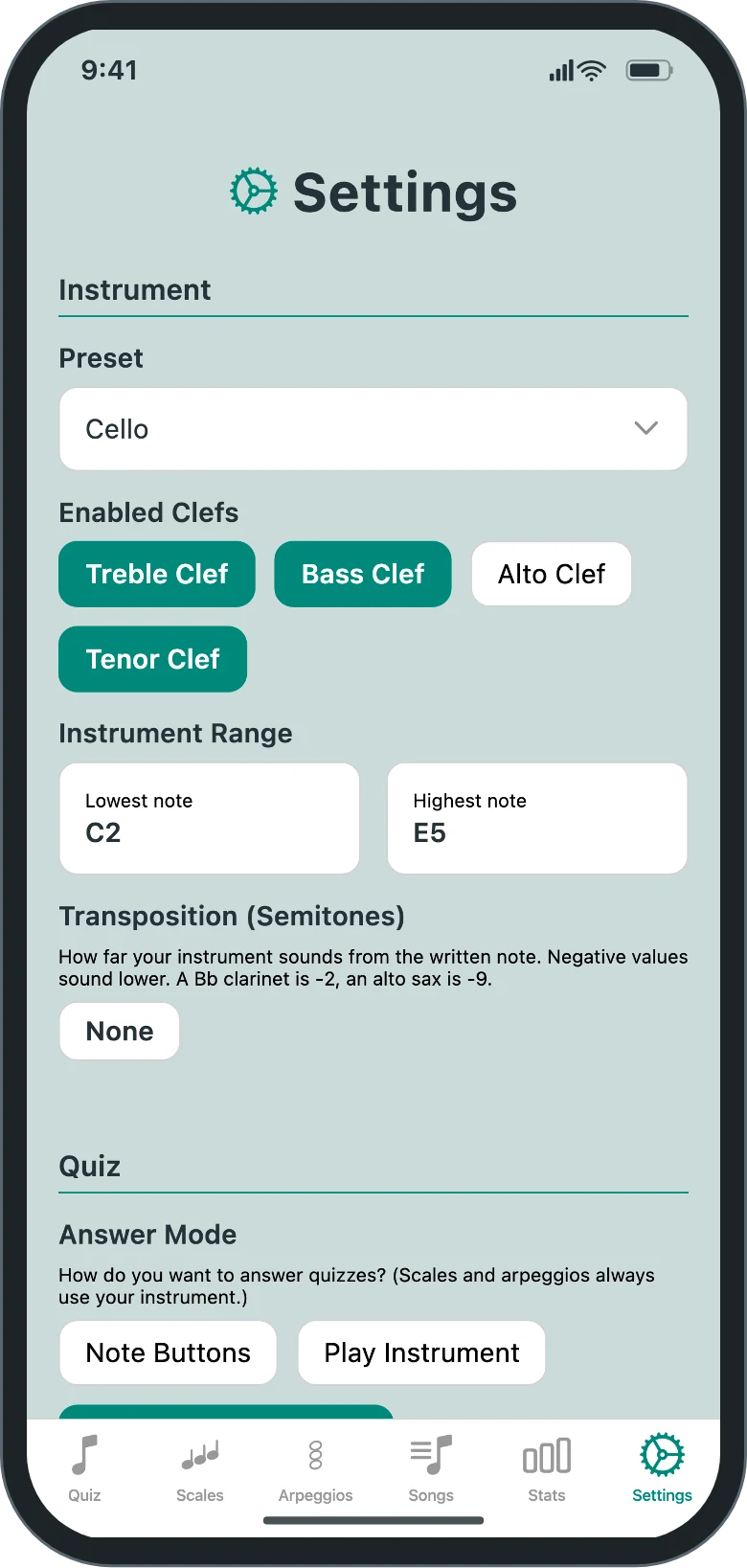
Instrument
| Preset | Picks your instrument and sets its range, clefs, and transposition in one step. |
|---|---|
| Enabled Clefs | Which of treble, bass, alto, and tenor clef you practice in. |
| Instrument Range | The Lowest note and Highest note the app will ask for. The app also uses it to decide which pitches it hears can be real notes, so set it to match your instrument. |
| Transposition (Semitones) | How far your instrument sounds from the written note. A B♭ clarinet is -2, an alto sax is -9. |
| Instrument Type | Shown when you set your own range instead of a preset. Tells the app how your instrument makes sound. |
Quiz
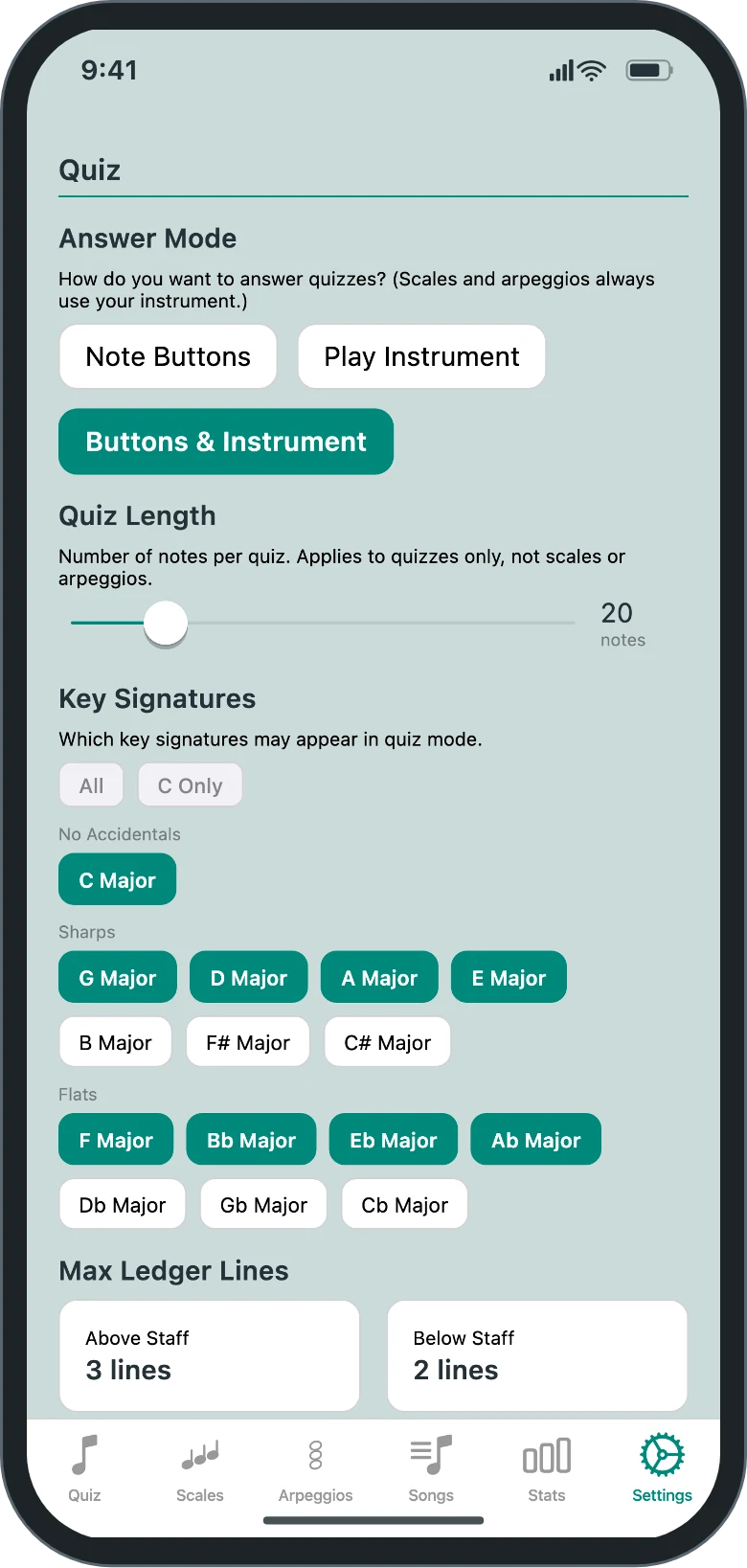
| Answer Mode | How you answer quizzes. |
|---|---|
| Quiz Length | Notes per quiz, from 5 to 100. |
| Key Signatures | Which keys can appear in quizzes. All and C Only are shortcuts. |
| Max Ledger Lines | How far above and below the staff notes may go. |
| Note Selection Range | How far apart consecutive quiz notes can be. Lower keeps them closer together. |
Listening
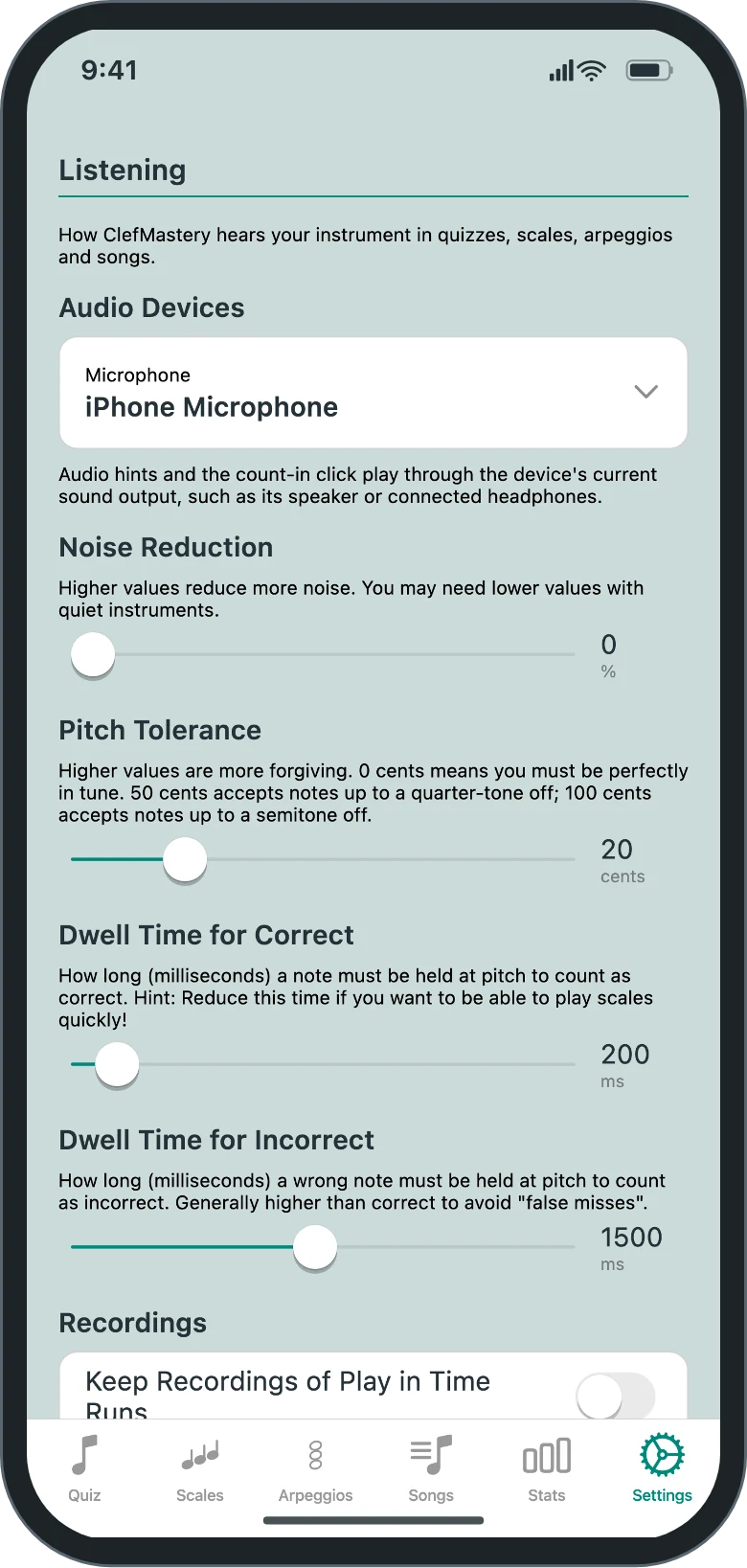
These apply wherever the app listens, in quizzes, scales, arpeggios, and songs.
| Microphone | On iPhone, iPad, and Mac, the microphone the app listens to. On Android, the app uses whichever microphone the system is using, so a connected USB or headset microphone usually takes over from the built-in one. Audio hints and the count-in click play through the device's current sound output. |
|---|---|
| Noise Reduction | How much background sound the app ignores. Lower it for a quiet instrument. |
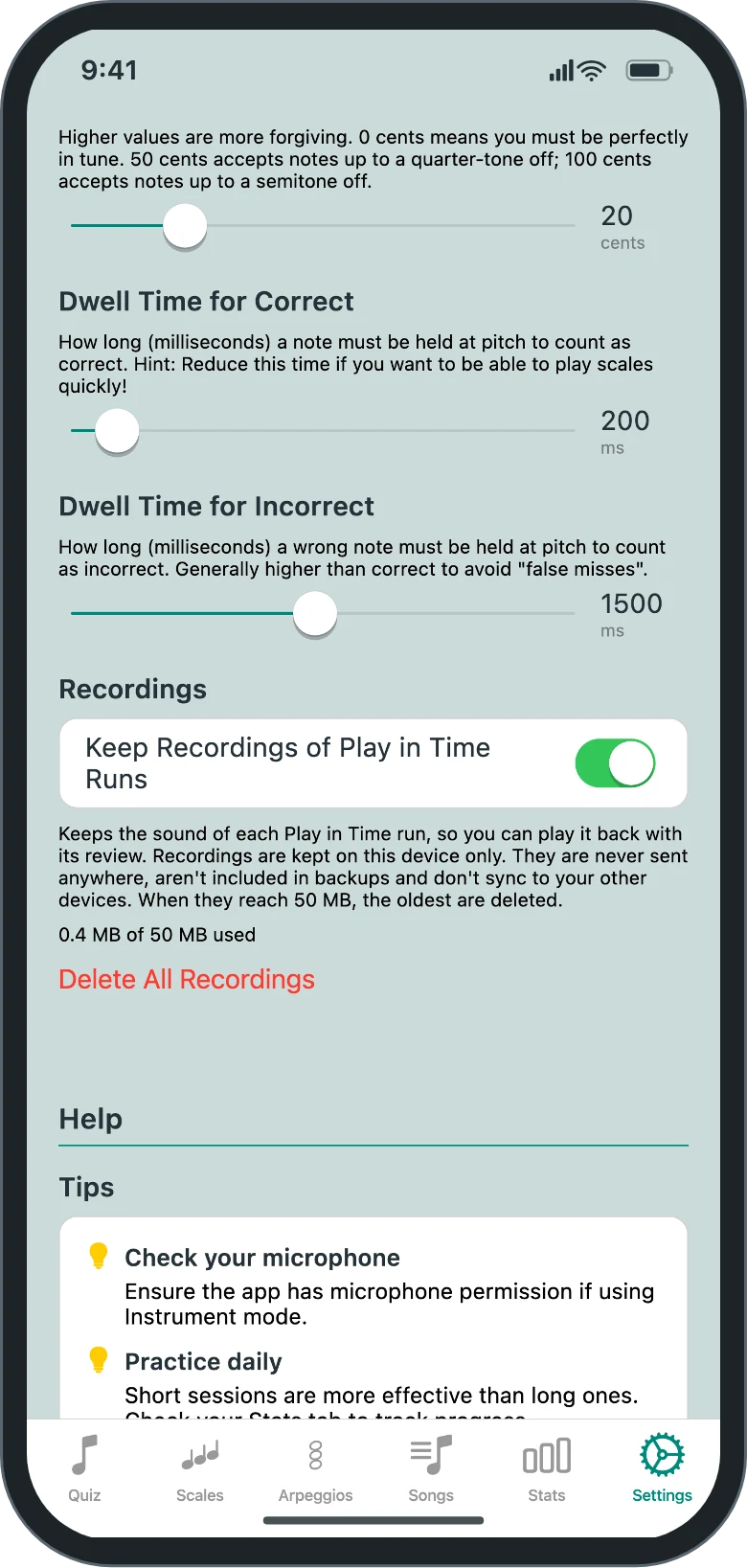
| Pitch Tolerance | How far off pitch a note can be and still count, in cents. 0 means perfectly in tune, and 50 accepts up to a quarter-tone off. |
| Dwell Time for Correct | How long the right note must sound before it counts, in milliseconds. Guitar, piano, harp, and mallet notes fade, so they only need half this time. |
| Dwell Time for Incorrect | How long a wrong note must sound before it's marked as a miss. Half this time for guitar, piano, harp, and mallets. |
| Keep Recordings of Play in Time Runs | Off by default. When it's on, each Play in Time run of a saved song is recorded so you can listen to it with its review. Recordings stay on this device. |
Outside the Settings tab
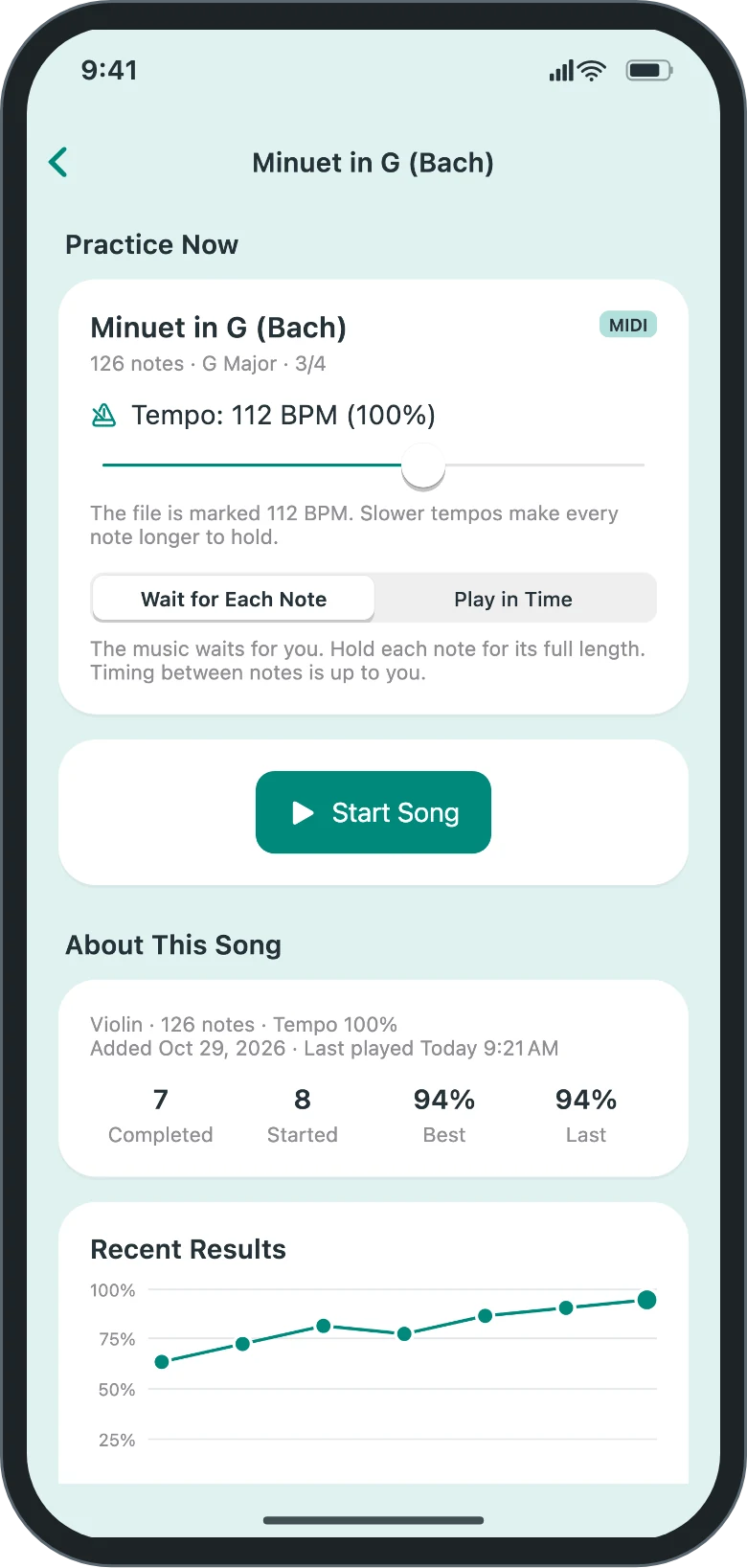
| Tempo | Under Practice Now on the song's page, which opens when you tap a song in Your Songs or finish an import. Each song remembers its last tempo. |
|---|---|
| Part or track | Under Practice Now on the song's page, when the song has more than one part. |
| Mode | Under Practice Now on the song's page. Choose Wait for Each Note or Play in Time. Each song remembers its last mode. |
| Count-in click, Timing, Calibrate | Under Practice Now on the song's page, when Play in Time is selected. Count-in click and Timing apply to every song on this device. Calibrate measures the timing delay for the selected microphone. |
| Results and reviews | Under About This Song on the song's page. Tap Review Results on a Play in Time result to open its review again. |
| Rename, Delete | The pencil and trash buttons on the song's row in the Songs tab, or Rename and Delete Song at the bottom of the song's page. On a narrow phone the row has no buttons, so use the song's page. |
| Delete All Songs | Songs tab, under the list of Your Songs. |
| Reset Statistics | Stats tab. |
| Manage (PDF subscription) | Songs tab, next to the count of PDF pages left this month. |
| Unlock | During the trial, in the banner at the top of the Settings tab that shows the days left. |
| Restore Purchases | On the purchase screen shown after the trial, and on the PDF Import subscription page. |
The app doesn't hear my notes
Nothing is detected at all
- Check that ClefMastery has microphone permission in your device's settings. The app asks the first time you use a mode that listens.
- On iPhone, iPad, or Mac, select your USB microphone or audio interface as the Microphone under Listening on the Settings tab. The list refreshes each time you open the Settings tab, so a device you just plugged in will appear.
- On Android, the app listens through whichever microphone Android is using. Check that the device is connected and that Android has switched to it.
Notes are detected, but they're wrong or inconsistent
- Move closer to the microphone, or play a little louder.
- Cut down background noise from other instruments, a metronome, or a fan. If the room can't be quieter, raise Noise Reduction under Listening on the Settings tab. If your instrument is quiet and notes are being missed, lower it.
- Play the note plainly while answering. Wide vibrato can read as a different pitch.
- Raise Pitch Tolerance if the app is stricter than you want, which is common on fretless instruments. Lower it to hold yourself to tighter intonation.
- If right notes register too slowly, shorten Dwell Time for Correct. If passing notes get marked wrong, lengthen Dwell Time for Incorrect.
Every note is off by the same amount
That usually means a transposing instrument without its transposition set. Under Instrument on the Settings tab, choose your instrument as the Preset or set Transposition (Semitones) yourself. The staff shows written pitch, and the audio hint plays the pitch that actually sounds.
Songs, MIDI files, and PDFs
My MIDI file won't import
The app reads standard MIDI files (.mid or .midi) up to 5 MB with at least one pitched part. Drum tracks aren't offered. If the file has several parts, you choose one on the song's page, under Practice Now.
The song doesn't match my sheet music exactly
Songs are practiced as a single line. Where a part has chords, the app keeps the highest note. It may shift the whole part by octaves to fit your instrument's range, and it leaves out notes that still don't fit. The song's page lists these changes under "Changes for Your Instrument". Widening Instrument Range on the Settings tab brings back the notes that were left out.
Wait for Each Note or Play in Time?
Choose the mode on the song's page, under Practice Now. Each song remembers the last mode you used.
- Wait for Each Note waits for you. Each note counts once you've held the right pitch long enough, and the timing between notes is up to you.
- Play in Time moves a marker through the music at the tempo you chose, and you play each note as the marker reaches it. Each note is checked for pitch, for when it starts, and for how long you hold it.
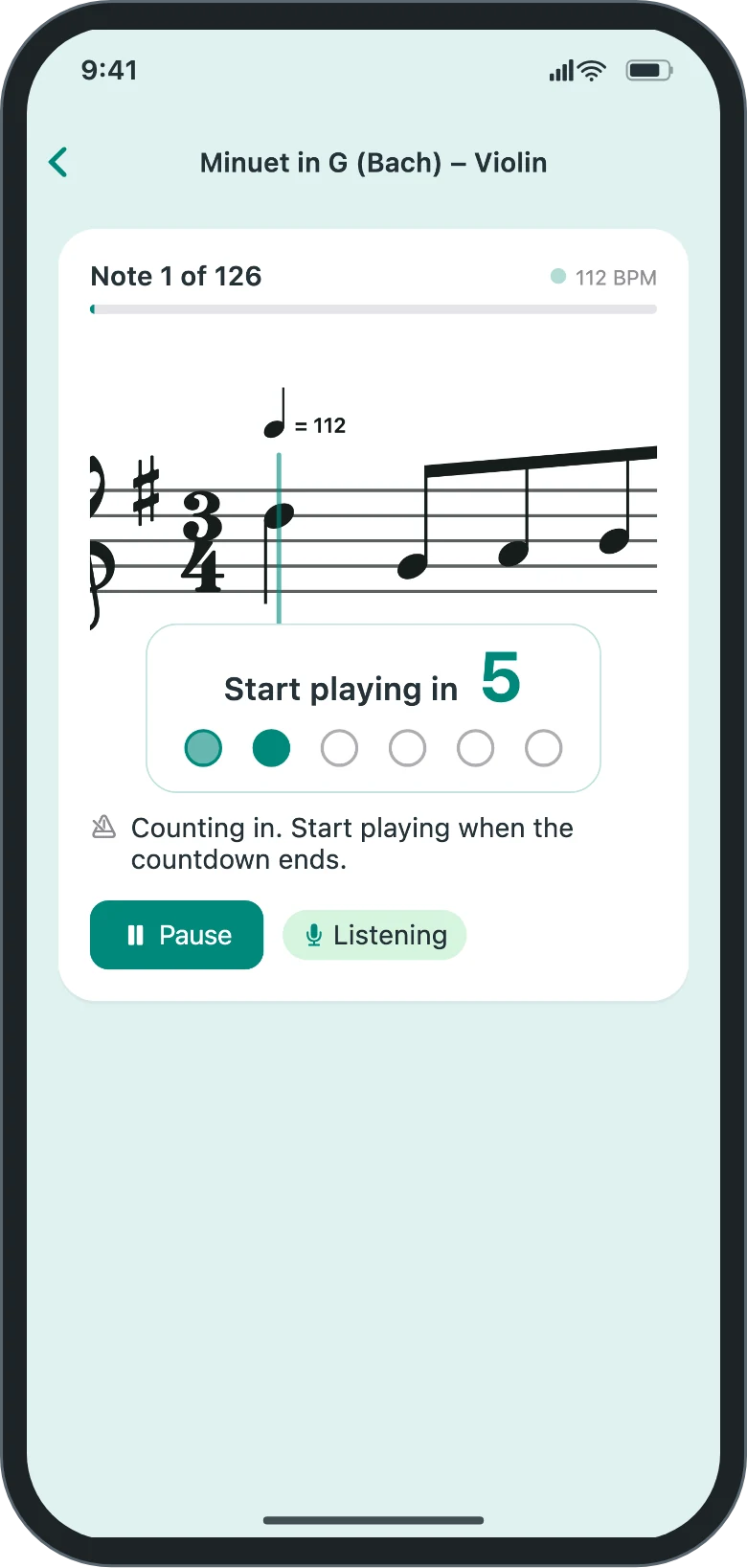
Play in Time starts with a countdown. "Start playing in" shows the beats left, and a row of circles fills in at the tempo of the piece. Start playing when "Play" appears. The countdown follows the time signature and lasts at least about 3 seconds, so a slow 4/4 counts 4 beats and a faster one counts 8. After a pause, Resume counts down again from the start of the measure. Turn on Count-in click to hear the beats. It clicks only during the countdown.
A note won't count in Wait for Each Note
- Hold it longer. A note counts once the right pitch has sounded for about three quarters of its written length at the tempo you chose.
- When the same pitch comes twice in a row, start the second note again with a new bow, breath, or pluck. One long note doesn't count for both.
- A slower Tempo makes short notes easier to hear and hold.
My notes are marked late or early
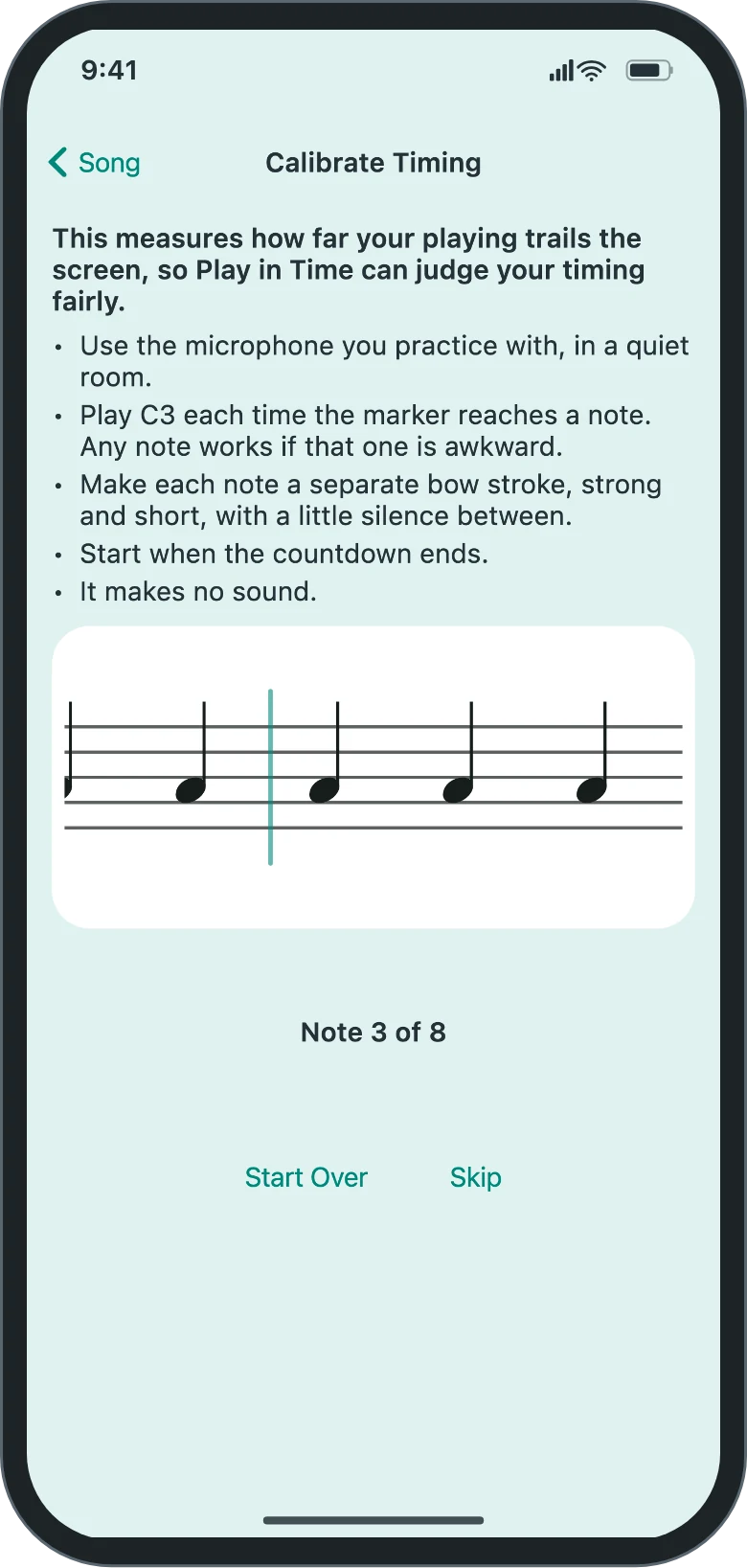
Run the calibration. On the song's page, choose Play in Time and tap Calibrate. You'll see a line of eight identical notes. Tap Start, and after a countdown the marker moves through the line. Play that note, or any single note, each time the marker reaches one. Keep each note strong and short, with a little silence between. On a piano or a plucked or struck instrument, strike firmly and let go. It takes about 15 seconds and plays no sound. If the app can't get a measurement, it tells you what to change, and you can try again or skip it.
- The app remembers the delay it measured and allows for it when judging timing. Each Play in Time run refines it. On iPhone, iPad, and Mac, each microphone keeps its own measurement. On Android, calibrate again after switching microphones.
- Choose Relaxed under Timing. It's the default, and Standard and Strict ask for more.
Relaxed On time within about a quarter of a second of the beat, more for long notes (up to half a second). Held long enough at half the note's length. Standard On time within about 0.2 seconds, more for long notes (up to 0.4 seconds). Held long enough at 60% of the note's length. Strict On time within 0.1 seconds, or a quarter of the note's length if that's more. Held long enough at 75% of the note's length. - Lower the Tempo. Notes last longer at a slower tempo, and longer notes get a wider allowance.
- The music keeps its tempo and doesn't follow you. Only a steady delay is allowed for, so gradually rushing or dragging shows up as early or late notes.
What do the marks in the review mean?
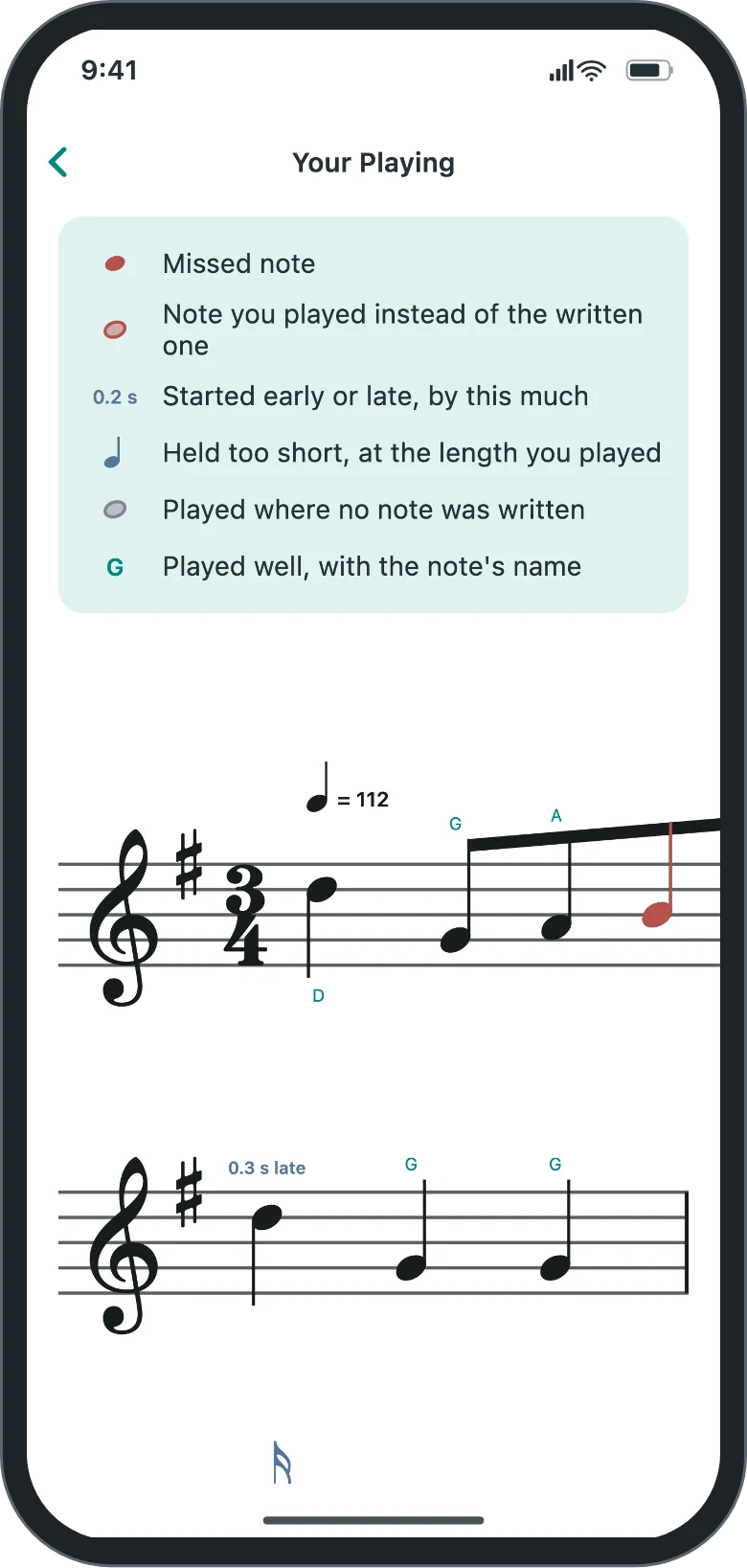
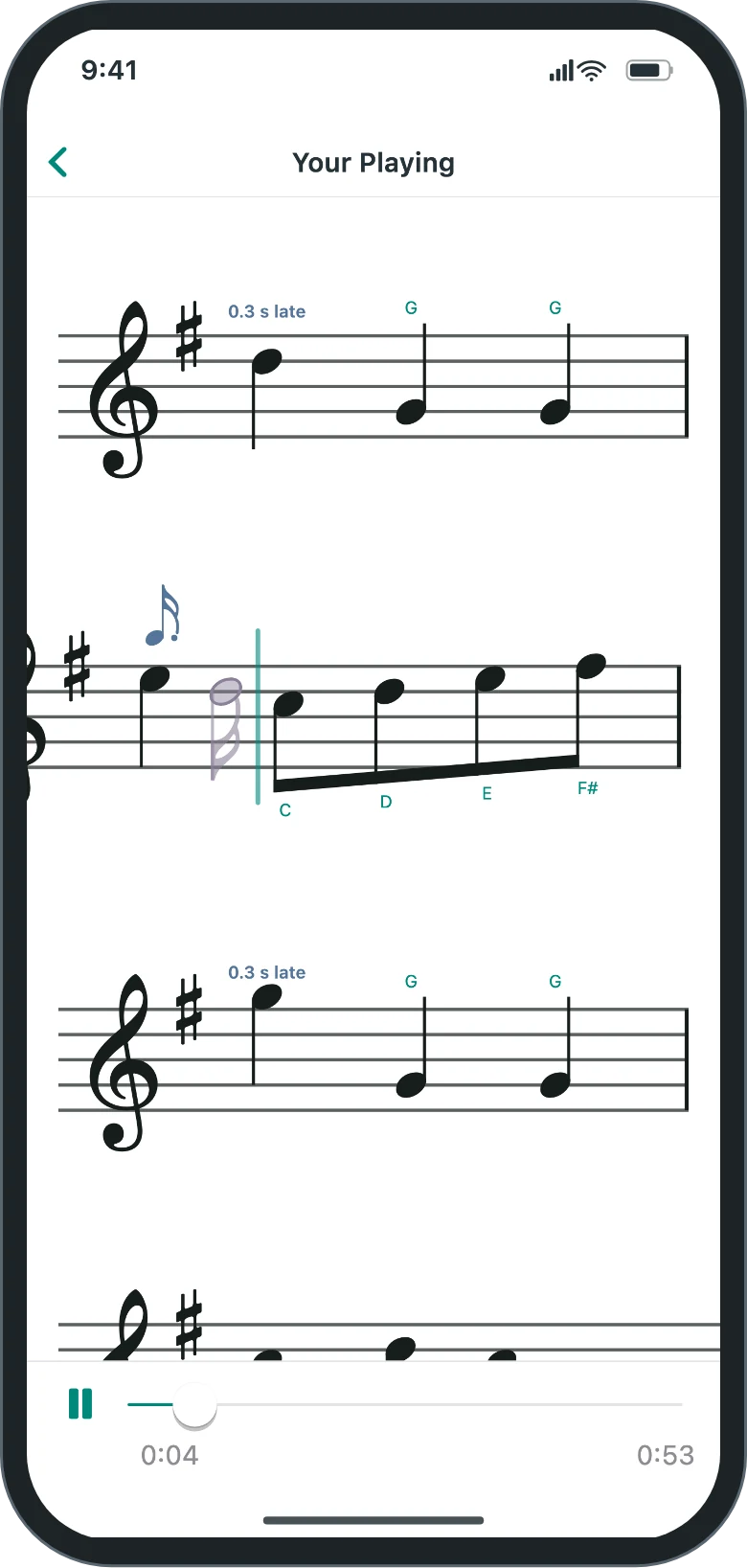
After a Play in Time run, Song Results shows your accuracy, and Review Your Playing opens the whole piece with what you played marked on it. A legend at the top shows each mark, and each kind has its own shape or label as well as its color.
- A red note was missed. Nothing was heard for it.
- A red outline just after a note is what you played instead, at the pitch you played.
- A blue label above a note, such as "0.2 s late", means it started outside the Timing allowance, by that much.
- A small blue note above a note means it was held too short. Its value shows about how long you held it.
- A gray outline is a note played where none was written, for example in a rest.
- A note name next to a note means you played it well, with the right pitch, on time, and long enough.
Short or out-of-time notes count half toward your accuracy, and missed or wrong notes count nothing. Extra notes don't count against you.
Listening to a run with its review
Recordings are off until you turn on Keep Recordings of Play in Time Runs under Listening on the Settings tab, or tap Turn On Recordings on a song's page when it offers it. The song's page then says "Recording is on" under the Play in Time options. Only Play in Time runs of songs in Your Songs are recorded, from just before the music starts to the end of the run. A run you leave early is kept with its unfinished result. Wait for Each Note, the drills, and calibration are never recorded.
When a result has a recording, its review has a play button and a time slider at the bottom. A marker moves through the marked music with the sound, and the page follows it a line at a time. Drag the slider to jump anywhere. If you scroll the music yourself, the page stops following until you press play again. If you paused during the run, you'll hear the measure you went back to twice, and the marker goes back with it.
Recordings stay on the device you played on. They aren't sent to us, synced to your other devices, or included in iCloud or Android backups, and the app can't export or share them. All recordings together can use up to 50 MB, about an hour and a half of playing, and the oldest are deleted to make room. A recording is also deleted with its result, when newer results push it out of the song's last 20, when you reset statistics, or when you delete the song. Delete All Recordings on the Settings tab removes them all and keeps your results and reviews.
"There is no recording of this run on this device" under a review's legend means the run was played before recordings were on or on another device, or its recording was deleted to make room. The review itself is complete.
The app hears the wrong octave or a wrong note in Play in Time
- Set Instrument Range on the Settings tab to your instrument's real range, or choose its Preset. The app uses that range to decide which pitches can be real notes.
- Where you can, let the previous note stop ringing before the next one starts, and keep open strings that aren't in the music from sounding. Two notes sounding together can read as a lower note.
- Play in a quiet room, close to the microphone.
- More tips are under The app doesn't hear my notes.
The music feels too fast
Drag Tempo down on the song's page, under Practice Now. The label shows beats per minute and a percentage of the song's own tempo, so a piece marked 105 reads "Tempo: 105 BPM (100%)" at full speed and "84 BPM (80%)" at 80%. Tempo goes from 25% to 150%. The count-in and any tempo changes in the piece follow the same percentage.
Where are my past reviews?
On the song's page, under About This Song. Recent Results lists your last results in both modes, with "In Time" after the date of a Play in Time result. A Play in Time result with a saved review has a Review Results button that opens it. On iPhone, iPad, and Mac, results and their reviews sync with the song through iCloud.
If you leave a Play in Time run early, it's kept once you're a quarter of the way through or 30 seconds into the music, whichever comes first. It's listed as unfinished with the measure where you stopped, and its review marks the notes up to that point. It doesn't count toward your best or as a completed run.
A review becomes unavailable when the song's notes have changed since you played it, for example after you correct a PDF song's part, clef, key, time signature, or tempo, or change Instrument Range or Transposition in a way that rewrites the song for your instrument. The result stays in the list. If a result asks you to update ClefMastery, it was saved by a newer version on another device.
PDF Import read my music wrong
Recognition is automatic and makes mistakes. How many depends mostly on the page you give it.
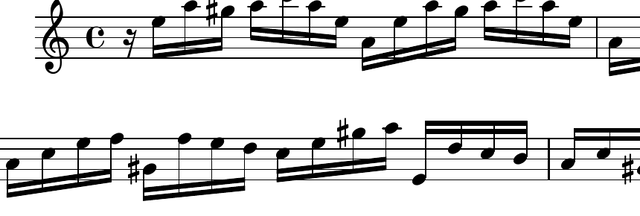
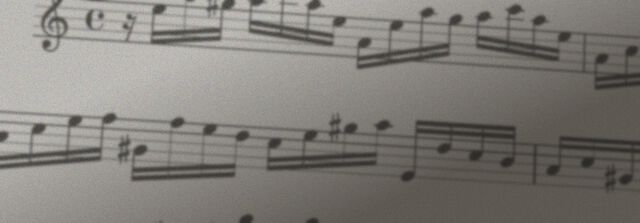
If all you have is paper, use a flatbed scanner or a phone's document scanner held flat above the page in even light. Either gives a much better result than a photo. Handwritten music and pages with heavy pencil markings are also hard to read.
On the preview page you can correct the clef, key signature, and time signature, and enter the tempo printed on your music. The "Things to Check" card points at likely problems. PDFs can be up to 30 pages and 25 MB, and can't be password-protected.
The tempo is wrong after importing a PDF
Recognition reads the notes but not the printed tempo, so a PDF song plays at 120 beats per minute until you set it. Right after the import, the preview page asks for it. Tap Enter the Printed Tempo and choose the note and number printed at the top of your music, such as a quarter note = 85, or a dotted quarter note = 60 in 6/8. If your music has no tempo mark, you can continue without one.
To set it later, open the song from Your Songs and tap Set the Printed Tempo under Practice Now. To change a tempo you already set, tap Correct the Score under About This Song. Either opens the preview page, and Save Changes keeps it. The Tempo slider keeps its percentage, so 100% then plays at the printed tempo. Play in Time reviews saved before the change are no longer available.
A conversion failed. Did it use up my pages?
No. When a conversion fails, for example because no music was found, the pages go back to your monthly allowance of 200.
Trial, purchases, and subscriptions
How the trial and the unlock work
The app is free for 7 days from the first launch. After that, a one-time in-app purchase unlocks it permanently. Reinstalling doesn't restart the trial.
I bought the unlock, but the app is asking again
Use Restore Purchases on the purchase screen, signed in to the same App Store or Google Play account you bought with. An App Store purchase covers iPhone, iPad, and Mac. App Store and Google Play purchases are separate and can't be moved between the two.
PDF Import subscription
- It's a monthly subscription with up to 200 pages a month. Unused pages don't carry over.
- It reads one note at a time. Chords and two-staff piano music are reduced to the top note of the top staff.
- It needs the one-time unlock first, and the free trial doesn't count. The subscription doesn't include or replace the unlock.
- To cancel, open Manage Subscription in the app, or go to Subscriptions in your App Store or Google Play account. Deleting the app doesn't cancel a subscription.
Refunds
Apple and Google handle all payments, so refund requests go to them. Use reportaproblem.apple.com for the App Store, or your order history in Google Play.
Sync and your data
iPhone, iPad, and Mac
History, stats, badges, settings, and saved songs sync through iCloud between devices on the same Apple Account. Saved songs count against your iCloud storage. The microphone choice and the Play in Time settings (Count-in click, Timing, and calibration) stay with each device. If nothing syncs, check that iCloud is on for ClefMastery in your device's settings.
Android
Data stays on the device. If backup is on in Android's settings, it's included in your Google backup and restored when you set up a new device. Recordings of your playing are never included.
Starting over
Reset Statistics on the Stats tab clears history, stats, and badges, along with each saved song's results and recordings. The songs themselves are kept.
Privacy
The app has no accounts, ads, or analytics, and microphone audio never leaves your device. Recordings, if you turn them on, stay on the device too. See the privacy policy.